
Mt.Lightning


SleepTwice is a comprehensive clock app for Android.
You can customize the screen and features, so you can make it your very own clock.
■Features
Time Signal: Set the time and type of time signal.
Alarm: Simple programming.
Calendar: Register your daily schedule.
Design: Create a unique clock.
■ Main Customizations
Fonts: Over 80 fonts and colors
Buttons: Color and transparency of various buttons
Background Image: You can set the background for each screen.
clock
The clock can be displayed continuously, but will be disabled if the battery level falls below 20%.
Time signal is available.
Type: 4 types
Time: Set the start and end times.
*The time signal uses the alarm function, so it can sound even when the app is closed or in sleep mode.

Calendar
Displays a one-month calendar.
You can set the start day of the week (Friday, Saturday, Sunday, or Monday).
You can also set a color for each day of the week individually.
*To use a schedule with an alarm, tap a date on the calendar.
Schedule List
Check your daily schedule.
How to Use
ADD ... Add a schedule
DEL ... Delete a schedule
Schedule ... Open schedule details
Schedule Details
Add or edit schedules.
How to Use
Title ... This is the name displayed on various screens.
BACK ... Return to the schedule list.
OK ... Register the schedule.
Start Time ... The start time of the schedule you want to register.
End Time ... The end time of the schedule you want to register.
Alarm ... Turn the alarm on.
Adjust Time ... Adjust the alarm time.
The alarm will sound between [Start Time - Set Time].
Details ... This is a field referenced only on this screen.


Timer
This timer can be set up to 23 hours, 59 minutes, and 59 seconds.
You can register frequently used times to the "Preset Button."
*How to Use
Tap the preset button
Set the registered time as the timer's set time.
Press and hold the preset button
Register the entered time to the preset button.
*While the timer is running, measurement will continue even if you close the app or the screen goes to sleep, but there will be a slight error when the screen is reloaded.

Stopwatch
This stopwatch can measure for more than 24 hours.
Times exceeding 24 hours will be counted as days.
Example:
23:59:59 0 Days → 00:00:00 1 Day
* While the timer is running, measurement will continue even if you close the app or the screen goes to sleep mode. However, there will be a slight discrepancy when the screen is reloaded.

Alarm
Alarm List Screen
Check the list of registered alarms.
How to Use
ADD ... Opens the alarm settings screen for registering a new alarm.
ALARM ... Opens the alarm arm settings screen for the corresponding alarm.
DELETE ... Deletes the corresponding alarm.
Alarm Settings Screen
You can set alarms for up to three programs.
How to Use
Title ... Register the alarm name.
BACK ... Return to the alarm list screen.
OK ... Register the entered alarm.
Day ... Set the day of the week the alarm will activate.
Last ... Turn ON when using the first alarm.
Next ... Turn ON when using the second alarm.
First ... Turn ON when using the third alarm.
Vibration ... Turns vibration ON/OFF.
Volume ... Adjusts the volume.
Bell ... Opens the alarm sound selection screen.
Music ... Opens the alarm sound selection screen.
Press and hold to return to the bell.
Play ... Listen to the alarm sound.
If the "Last" alarm setting is "No vibration & volume 0," it will be treated as "Vibration."


Settings
You can change the following settings.
*How to Use
Background ... Change the background of various screens.
Font ... Change the font.
Font Color ... Change the font color.
Button Color ... Change the button color.
Time Display ... Switch the displayed time.
Time Signal ... Set whether to include a time signal or sound.
Week Start Day ... Set the first day of the week.
Weekday Color ... Set the color of the day.
Alarm Auto-Off ... Set whether to automatically turn off the alarm.
Sleep ... Enable or disable the sleep function.
Menu Position ... Set the menu button position.
Click Sound ... Set the click sound.
Language ... Change the language for some functions.
Register ... Apply the current settings.
Favorites ... Register the current settings as a favorite.

Settings (Background)
You can set the background image, image brightness, and button transparency for each screen.
How to Use
Internal Image ... Cycles through the built-in images.
External Image ... Select your own image.
Screen Button ... Sets the button for the selected screen.
All Screens ... Sets the button for all screens.

Settings (Font)
Select a font from the "Sample Font" next to the menu.
Since font sizes vary depending on the device, you can adjust the font size on this screen.
*How to use
Main ... Sets the size of the main screen
Menu ... Sets the size of the menu

Settings (font color)
Select the area where you want to change the font color, then select a color from the "Sample Color" next to the menu.
When you select the area where you want to change the font color, the background color of the "Sample Color" will change to the color of the button you're changing.
*If you select Main, the color underneath the background image will be used.

Settings (button color)
Select the area of the button you want to change the color of, then select a color from the "Sample Color" next to the menu.
When you select the area of the button you want to change the color of, the font color in "Sample Color" will change to the color of the font you're changing.
*If you select Main, the color below the background image will be changed.

Settings (time display)
Switches the time display.
How to use
24-hour (00:00)
Switches to 24-hour display
12-hour (12:00 AM)
Switches to 12-hour display (12:00 AM is 12:00)
12-hour (00:00 AM)
Switches to 12-hour display (12:00 AM is 00:00)

Settings (time signal)
Set the time signal.
*How to use
On ... Enables the time signal.
Off ... Disables the time signal.
Cuckoo Clock ... Plays the sound of a cuckoo clock.
Wild Bird ... Plays the sound of a wild bird.
Pendulum Clock ... Plays the sound of a pendulum clock.
Digital ... Plays the sound of a digital clock.
Start Time ... Sets the start time of the time signal.
End Time ... Sets the end time of the time signal.

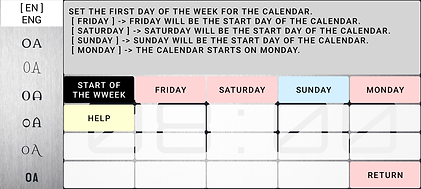
Settings (week start day)
Set the first day of the week for your calendar.
*How to use
Friday ... Sets the calendar to start on Friday
Saturday ... Sets the calendar to start on Saturday
Sunday ... Sets the calendar to start on Sunday
Monday ... Sets the calendar to start on Monday
Settings (Day Color)
Sets the color for each day of the week.
How to Use
Select a color from Main, Button A, Button B, or Button C.
Monday ... Sets the color for Monday.
Tuesday ... Sets the color for Tuesday.
Wednesday ... Sets the color for Wednesday.
Thursday ... Sets the color for Thursday.
Friday ... Sets the color for Friday.
Saturday ... Sets the color for Saturday.
Sunday ... Sets the color for Sunday.
Holidays ... set the color for holidays

Settings (Auto Alarm OFF)
Set the automatic pause interval for the "Alarm Stop Screen" that is displayed when using the "Timer" or "Alarm."

Settings (Sleep)
Sets whether the device sleeps or not.
※How to use the various buttons
On ... Does not display the screen at all times.
Off ... Displays the screen at all times.
※When the battery level is below 20%, the device will be treated as on (sleep).

Settings (menu position)
Sets the menu position.
*How to use
Left ... Moves the menu to the left.
Right ... Moves the menu to the right.
When you change the menu display position, the menu position on the sample screen will change, but it is not saved; you must save it separately.

Settings (Language)
Set the language.

Settings (Favorites)
Save your current settings or recall or apply saved settings.
*How to use
Recall ... Reflects your favorite settings.
Register ... Registers your settings as a favorite.
Delete ... Resets the favorite button.
